
Printers may be one of the most hated devices in tech, but even in 2026, they’re a necessary part of our setups. We need them for specific, usually time-sensitive tasks, and when they don’t work, it can be a major pain.
For a lot of Mac users upgrading to macOS 27 Golden Gate, including me, that’s exactly what happened. While we’re used to some things needing updates or permissions to work after updating to a new version of macOS, Golden Gate caused more problems than usual, and some of the devices that you’ve depended on for years might have suddenly stopped working—including some Brother and Canon printers. If you’re like me, it might take a few weeks to notice because, well, you’re probably not printing things all that often. But when you do, it’s important, and you need it to work.
You can try to find a newer driver, but depending on the age of your printer, there’s a good chance you won’t be able to find one that’s been updated in a while. And if you try deleting your printer and adding it as a new device, it probably won’t be found either.
The problem lies with Rosetta, the background process that automatically translates Intel-based apps for use with Apple Silicon. It’s been silently running in the background ever since macOS Big Sur on the first M1 Macs. However, Apple removed its installation with macOS 27 Golden Gate as it prepares for a world without Intel apps when macOS 28 arrives next year.
Since many printers stick around for years, some very popular models relied on Rosetta to communicate with Apple Silicon Macs. Without Rosetta, that can’t happen with an old Intel-based driver. But there’s an easy fix. Rosetta actually still exists on your Mac; it just needs to be turned on.
How to install Rosetta
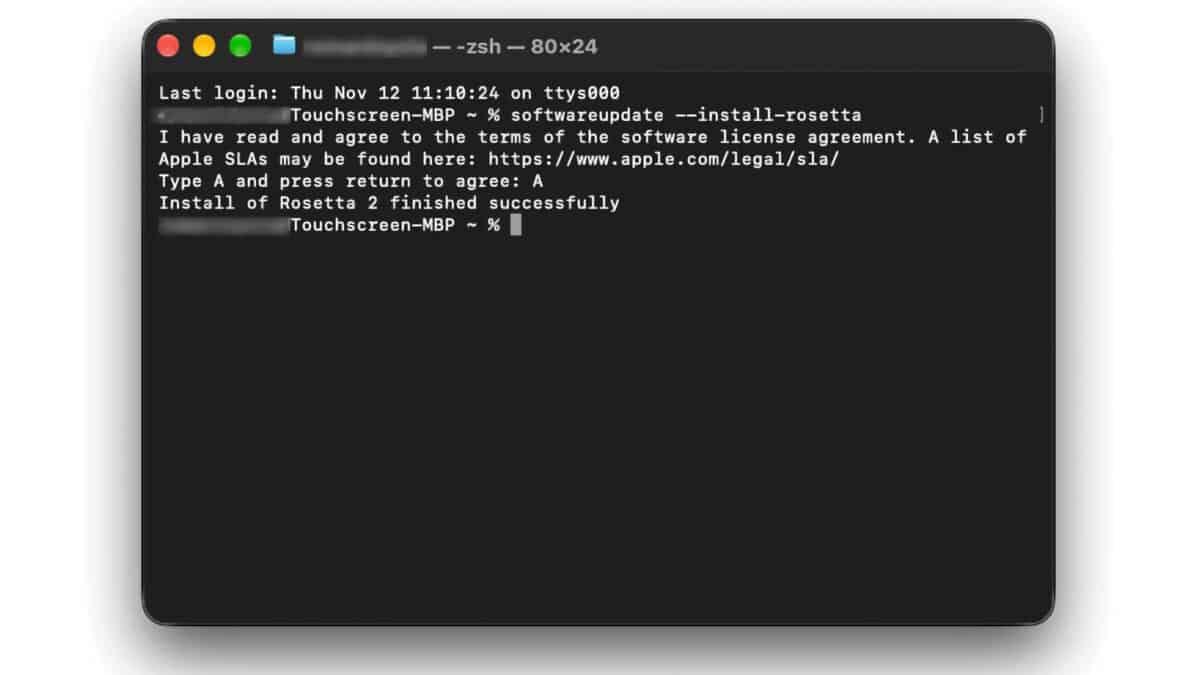
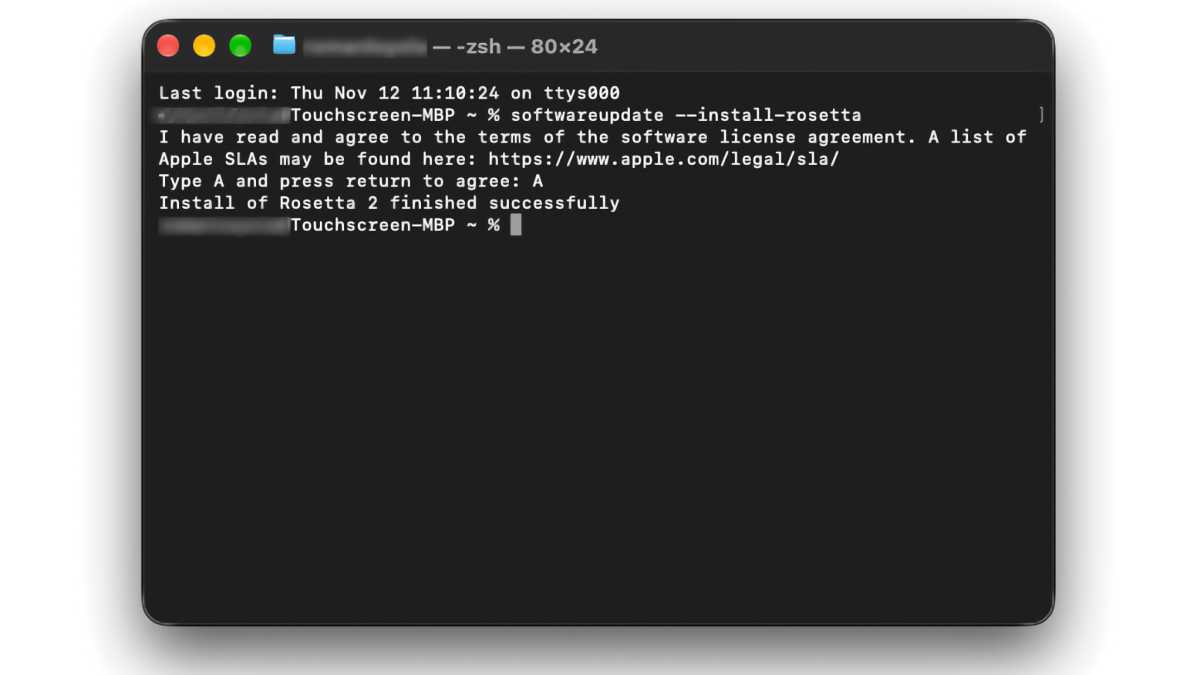
- Open the Terminal app. It is located in Applications > Utilities, but you can also press Command-spacebar, type “Terminal” and press Return.
- In Terminal, at the prompt, enter:
softwareupdate --install-rosetta - Press Return.
- The app will ask you to agree to the software license agreement. Assuming you do, press the letter “A” and hit Return.
- It’ll take a moment to install. Once the installation is done you can quit Terminal.
Foundry
Your printer should now work, though you might need to restart the job that failed. If that doesn’t work, restart your Mac.
The bad news is that unless Apple changes its mind, you’ll need to get a new printer or a different workaround when macOS 28 arrives next year. But until then, happy printing.