

If visionOS and the Vision Pro are all about charting a course to the future of wearable devices in front of our eyes, Apple needs to keep pushing toward that future at every opportunity. Fortunately, visionOS keeps moving forward, with several substantial feature improvements that have rolled out in updates over the past year-plus.
The ultimate fate of Apple’s vision products remains unclear. I have to assume that the long-term goal is a pair of lightweight glasses that we can use to overlay software on top of our world. Everything between now and then is about developing the technology to make that possible. And with visionOS 26, Apple is doing what it needs to be doing: iterating, making everything better, and building out an entirely new operating system one block at a time.
Better Spatial Personas
Apple had already taken its most uncanny launch feature (the dead-eyed Personas) and made it shine with a software update. It could have considered it a solved problem, but it didn’t.
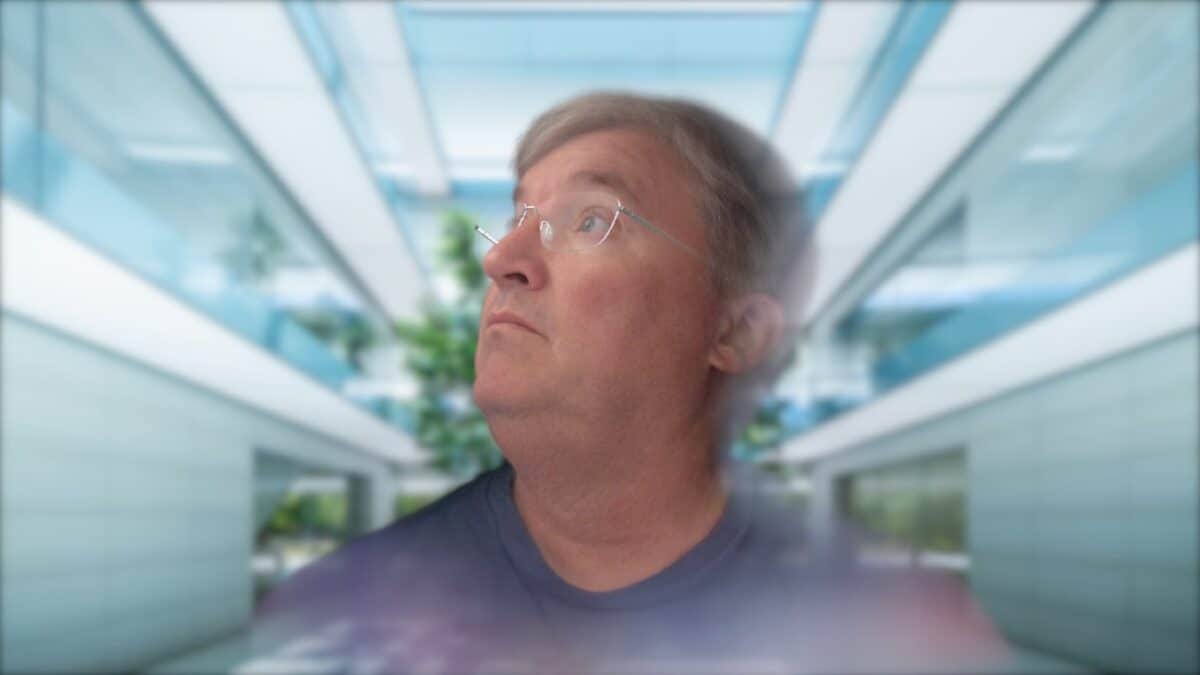
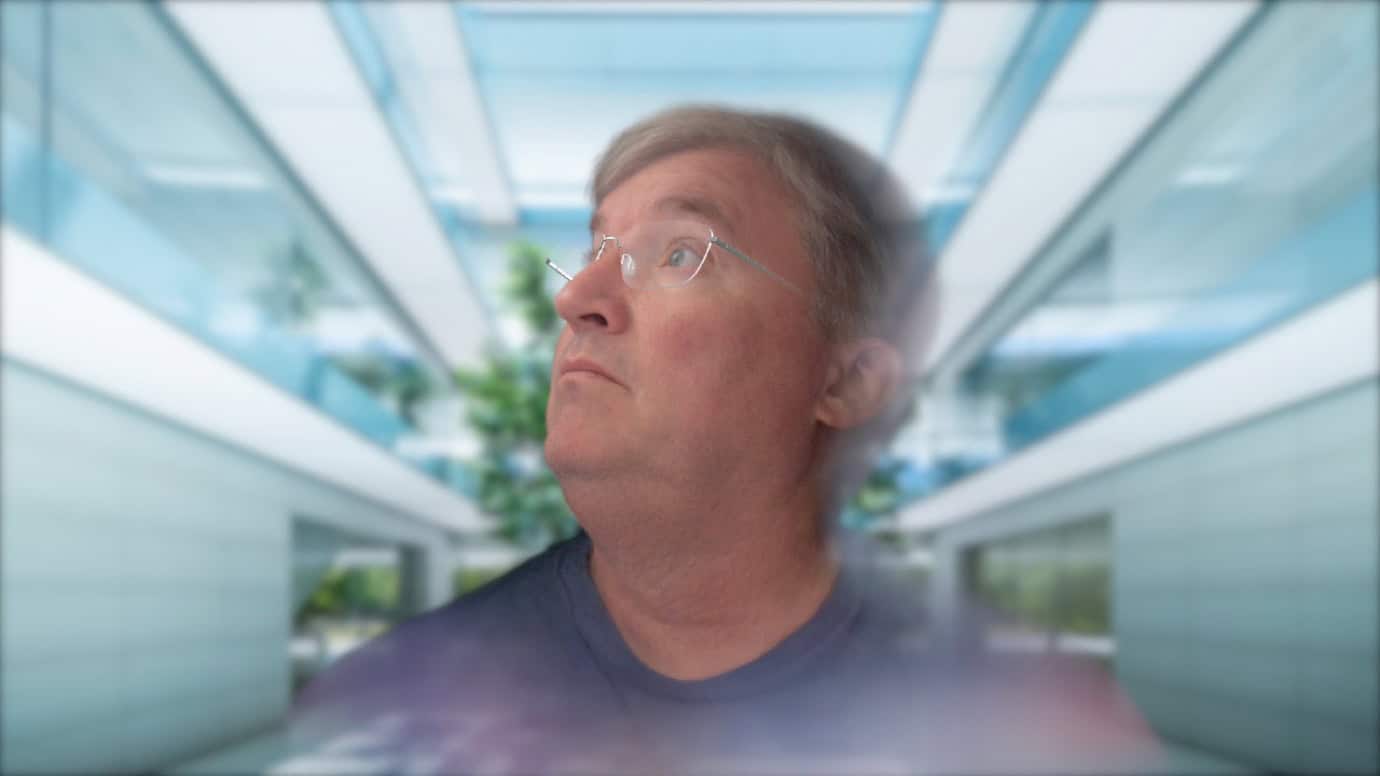
Instead, visionOS throws away the improved Personas entirely and replaces them with even better versions. The new Persona engine makes these digital replicas of their users look real in a way that the previous versions did not. Part of the trick is that more of the head is now captured when you’re setting up a Persona—which means that as a Persona turns its head to the side (or you move around), the Persona still looks like a person and not a face hanging off the front of a mannequin head like cheese on a pizza.
I’d say that Personas have exited the Uncanny Valley, but that’s not really true—the old update got them out of the valley. But these are better, more expressive and human. Hair and complexion are improved, and there are more customization options for glasses. I absolutely despised the original implementation of Personas on visionOS, but Personas version 3.0 is excellent.
Maybe it’s the fact that they look better when you see the side of the head now, but Apple has chucked the idea of personas as two-dimensional objects, at least for FaceTime calls. They’re Spatial by default now, your friends can just drop down in your space or whatever virtual environment you’re in. It was already a good experience, and now it’s even better. I do occasional calls with my tech journalist friends who have Vision Pros, and it’s like we’re hanging out in person. There’s really nothing like it, and it just got way better in visionOS 26.
Unfortunately, while beards look better on visionOS 26, they still limit a Persona’s mouth movement.
Geographic persistence and widgets

In the long run, assuming AR glasses are a thing (which is what we’re all assuming here, because that’s why this whole project exists), you’ll want to be able to place a virtual item somewhere and have it still be there when you come back to it later. You know, like actual items in actual reality.
In previous versions of visionOS, there was basically none of that persistence across reboots. If the Vision Pro shut down (this happened to me most frequently during long breaks between sessions, where it would shut down to preserve battery), all windows were closed. You could set up a whole careful world of windows and objects, but they were all temporary, so why bother?
visionOS 26 addresses that. Now you can leave items in one place and they’ll appear when you enter that space, even if the Vision Pro has rebooted or shut down in the interim. Windows are always where you left them. It’s great for short-term reusability, and a must if you take the long view. Now I can place a virtual object like a TV set from the Sandwich app Television and stick it on a table, and know that the next time I come back to that location, it’ll be there. (And you can always press and hold the Digital Crown to gather all your windows in front of you, in case you left your Safari window in another room.)
A big beneficiary of geographic persistence is the new ability for visionOS to use widgets from other apps. Widgets have spread across all of Apple’s other platforms, but this is their first appearance on visionOS, and they’re a great fit.
visionOS lets you place widgets on physical surfaces like walls, where they’ll remain anchored. (You can actually do this with just about any visionOS window so that you can snap a window to a wall, ceiling or floor and it’ll stick there.)
In visionOS 2, I tried a bunch of different widgets from apps like Widgetsmith and Windora, but their lack of persistence made me just give up on using them. Now that shouldn’t be a problem. To add a widget, you open the new Widgets app and then browse through a list of widgets offered by various apps, including both Apple’s and those from third parties.
I was able to pop a couple of widgets onto the wall in my bedroom, right above the TV, and refer to them while watching a movie. They were the Clock widget from Apple and a weather widget I built for myself using JavaScript in Scriptable that worked just fine as a widget on visionOS, docked to the wall.
The new Photos widgets are interesting—you can attach a panorama to a large widget and stick it on a wall, making it look like a window, very much in the same style as the visionOS app Windora. Unfortunately, when I tried it, the panoramas were so zoomed in that most of what I wanted to see wasn’t visible. I also couldn’t really make the window very large. I wish there were more ways to adjust panoramas, within reason. Other photo widgets featuring spatial images were a bit uncanny, popping out of the frame and moving whenever I moved my head. My best luck came in sticking plain old flat pictures into widgets on walls.
Environments in a holding pattern

Immersive Environments (the desktop wallpaper of visionOS) are another favorite visionOS feature of mine. While it’s clear that Environments are on Apple’s mind in visionOS 26, the direction things are going is anything but clear.
There’s one new Environment in visionOS 26: Jupiter. This environment places you on the tiny moon Amalthea, looking out at the solar system’s largest planet. Previous environments have been more or less static—a swaying palm tree here, a stray rain shower there—but Jupiter is much more interactive. You can enter Control Center and adjust the time of day (in other words, the amount of Jupiter’s face that’s in sunlight) and the speed at which time passes. Embedded in all of this is the suggestion that future Environments may be more customizable.
Jupiter is spectacular to look at and play with. As a tech demo, it’s outstanding. But like the previous space-based Environment on the surface of the Moon, I found the Jupiter environment tough to work from. I love space stuff more than the average person, but I don’t enjoy working there.
While I’m glad that Apple is apparently investing in figuring out what an Environment should be when it grows up, I also have to admit that I’m disappointed in the lack of progress on any other front. Jupiter is the only new Environment added in visionOS 26, and it wasn’t that big of a list to begin with.
What’s worse, there are some really fun environments built into third-party apps that remain entirely locked into those apps rather than being able to be used globally. Recently, Disney+ added the creepy Alien: Earth containment room as an environment, and HBO Max added a Harry Potter-themed environment. Previous environments have included Star Wars, Avengers, and Game of Thrones-themed ones. But if you want to hang out and check your email atop Avengers Tower, you can’t. It’s only available in the Disney+ app.
I don’t get it. As with so much of visionOS 26, Apple has left me wanting more. A lot more.
Spatial scenes for everyone
In a welcome sign of rapid iteration, Apple has thrown out last year’s algorithm that turned flat photos into remarkably good 3-D ones, and replaced it with the same multi-layered spatial scenes that it’s featuring in effects in the other 26 operating systems.
The result is an image that doesn’t just look 3-D, but which adds more of a perspective change when you move your head toward the image or from side to side. It can’t reveal information that’s not really there, of course—there’s some smudgy generative filling going on in the background—but the effect is still impressive.