

iOS 26! It feels like just last year we were here discussing iOS 18. How time flies.
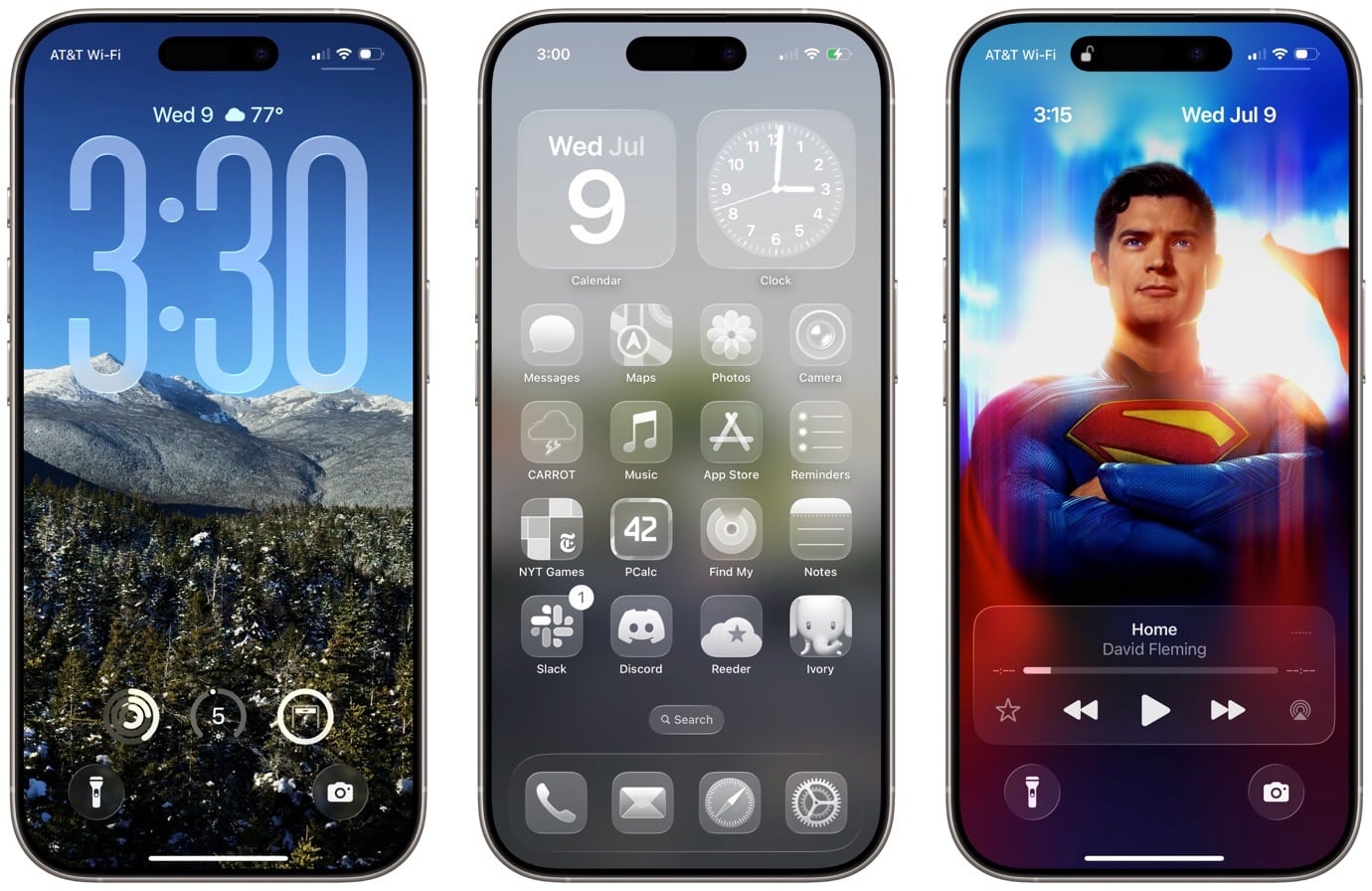
After a year that saw the debut of Apple Intelligence and the subsequent controversy over the features that it didn’t manage to ship, Apple seems to have taken a different tack with iOS 26. In addition to the expansive new Liquid Glass design that spans all of its platforms, Apple has largely focused on smaller, “quality of life” improvements rather than marquee new features. That’s not a bad thing, either—these are often the types of things that Apple does best, and which actually make a meaningful impact on the lives of their customers: saving them time waiting on hold on the phone, helping them avoid dealing with spam, and improving their driving features.
It’s also worth noting that, with very few exceptions, all of the iOS 26 features that Apple demoed during its WWDC keynote this year are available, right now, in the public beta. The exceptions include the digital ID feature in Wallet that uses info from your passport and the age rating/content restriction updates in the App Store. That’s it. Everything else has been there since the earliest beta builds.
I’ve spent the last few weeks running those initial developer betas of iOS 26 so you don’t have to. As the public beta arrives, you may be tempted to dive in, so allow me to run down the biggest changes to your phone. And, as per our usual reminder, this is the beta period, so everything is still subject to change and the final version, when it arrives this fall, might look or work differently from the way it does today.
With that disclaimer out of the way, let’s take a look at what might convince you to take the plunge.
Liquid Glass half-full
Apple’s new design language, dubbed Liquid Glass, applies across all their platforms, but unsurprisingly, it feels most at home on the iPhone and iPad. That’s in part because of the touch interface; the literal hands-on nature makes the feel responsive and more like physical things that you’re interacting with. For example, dragging the new magnifying loupe across the screen, watching the way it magnifies and distorts text and images as it passes over them—this interaction has always been unique to iOS for practical reasons, but the way it feels here doesn’t have a direct analogue on other platforms.